
Web UI
Lerd includes a browser dashboard available at http://lerd.localhost, served by the lerd-ui systemd service (started automatically with lerd install).
lerd dashboard # open in your default browserThe .localhost TLD resolves to 127.0.0.1 natively on all modern systems, no DNS configuration needed. The dashboard is also reachable directly at http://127.0.0.1:7073 if nginx is not running.
Real-time updates
The dashboard opens a single WebSocket to /api/ws on load and receives state changes as they happen. No polling, no stale panels. Every surface that mutates lerd state (browser actions, lerd CLI commands, the MCP server, the file watcher) pushes a fresh snapshot to every connected tab within about 200 ms. If the WebSocket ever drops (e.g. lerd-ui restart), the dashboard falls back to a 5 s polling loop and reconnects in the background with exponential backoff, so a restart is transparent. Each status payload carries the id of the process that answered, so a dashboard that reconnects to a restarted lerd-ui reloads itself onto the assets that server now ships rather than running the previous build's page against it.
Behind the scenes a background container poll runs every 15 s when at least one tab is visible and the desktop session is active, and drops to 60 s otherwise (every tab hidden, or the session reported idle or locked by systemd-logind). Battery-aware: a focused tab on a locked laptop still falls back to the slow cadence.
Install as an app
The dashboard is a Progressive Web App (PWA). You can install it as a standalone desktop app from any Chromium-based browser (Chrome, Brave, Edge):
- Open
http://lerd.localhost - Click the install icon (⊕) in the address bar
- Click Install
Once installed, Lerd opens in its own window without browser chrome, just like a native app.
lerd dashboard, the tray's Open Dashboard and the macOS Lerd app all start lerd first when nothing is serving it, so opening the dashboard on a stopped environment brings it up rather than landing on a page whose only content is a button to press. The command shows the same spinner lerd start does; the macOS app shows a native progress window. A dashboard already open in a browser tab is the one case that cannot shell out; that is what the Start when the dashboard opens setting below covers.
A service worker ships with the dashboard, so when lerd is stopped (including via lerd quit) or restarting, the installed PWA shows a small offline landing page instead of the usual browser "this site can't be reached" error. The page leads with what you can click: a Start Lerd button, which starts the stack from there and streams the same per-unit progress the dashboard shows before reloading into it, and Retry now. The lerd start command and the tray hint follow underneath as the terminal fallback. Start Lerd appears only while the UI daemon still answers on its own port, which is the case after lerd stop (nginx is a container that stops with the stack; the daemon is a host process that does not) and not after lerd quit, where nothing is left listening to be asked. The page re-probes the vhost every 5s and reloads as soon as it serves again, so a start from the CLI or the tray also lands you back on the dashboard.
http://127.0.0.1:7073 is the daemon's own port and exists as a fallback for a stopped stack, not as a second home for the dashboard. A loopback session there moves itself to http://lerd.localhost as soon as nginx answers, and while it sits on the fallback it will not ask for notification permission or register a push subscription: both are per-origin, so settling on the port would leave two browsers subscribed and every notification arriving twice. A LAN session, which is served from the host's own IP on the same port, is left alone.
Layout
The default landing page is a Dashboard with at-a-glance widgets across sites, services, workers, and system health. Selecting Sites, Services, or System switches to a three-pane layout:
- Left icon rail: the lerd logo at the top is the link back to the Dashboard; below it sit the Sites, Services, and System icon buttons; a separator further down lists a per-service icon for every running service that exposes a dashboard (phpMyAdmin, pgAdmin, Mailpit, RustFS, Meilisearch, Mongo Express, Selenium, etc.), each drawn as the mark its preset ships rather than a generic glyph for its category, in the rail's own colour so it still lights up on hover and when its dashboard is the one open, and clicking one opens that dashboard inline as a full-width iframe over the middle and detail panels; the notification bell, theme switcher and documentation button at the bottom, the last of which opens the built-in documentation rather than the website. The bell keeps recent notifications with an unread count; the theme switcher is a single icon showing the mode in effect (sun, moon, or a half circle for following the system) that opens a menu to pick between Light, Dark and System, with the tooltip naming what System currently resolves to. Hovering any rail icon reveals its label in a floating tooltip to the right, so the collapsed rail stays readable at a glance
- Middle list panel: scrollable list of all items in the active section; status dots, compact rows, collapsible groups (hidden on the Dashboard)
- Detail panel: full controls and live logs for the selected item
On mobile the dashboard, list, and detail panels are full-screen with a bottom tab bar for navigation that includes Dashboard alongside Sites, Services, and System, plus an Apps entry holding what the rail's dashboard launchers hold on a wide screen, as a grid of cards drawing the same preset marks in their brand colours.
Theme
Light, dark and follow-the-system live in the icon rail's theme switcher. The colours themselves are a separate choice: System → Lerd → Theme picks between lerd, the bright brand red, muted and Ocean for anyone who finds the default too sharp, the classic editor schemes (Solarized Dark, Monokai, Cobalt, Dracula, Nord, Gruvbox Dark) and the desktop ones (Breeze, Adwaita, macOS). You can add your own by writing a small YAML file, either by hand or through the import button; see Dashboard themes.
Language
The dashboard ships in fourteen languages: English, German, Spanish, French, Indonesian, Dutch, Portuguese, Turkish, Simplified Chinese, Japanese, Romanian, Italian, Polish, and Vietnamese. The first time you open the dashboard, the language is autodetected from your browser's preferred locale (Paraglide reads navigator.language and picks the closest match, falling back to English). To change it later, open System → Lerd and use the language picker in the settings section; the choice persists in localStorage so subsequent sessions open in the same language. Strings are wired through Paraglide; new keys fall back to English when a locale hasn't been translated yet.
Dashboard
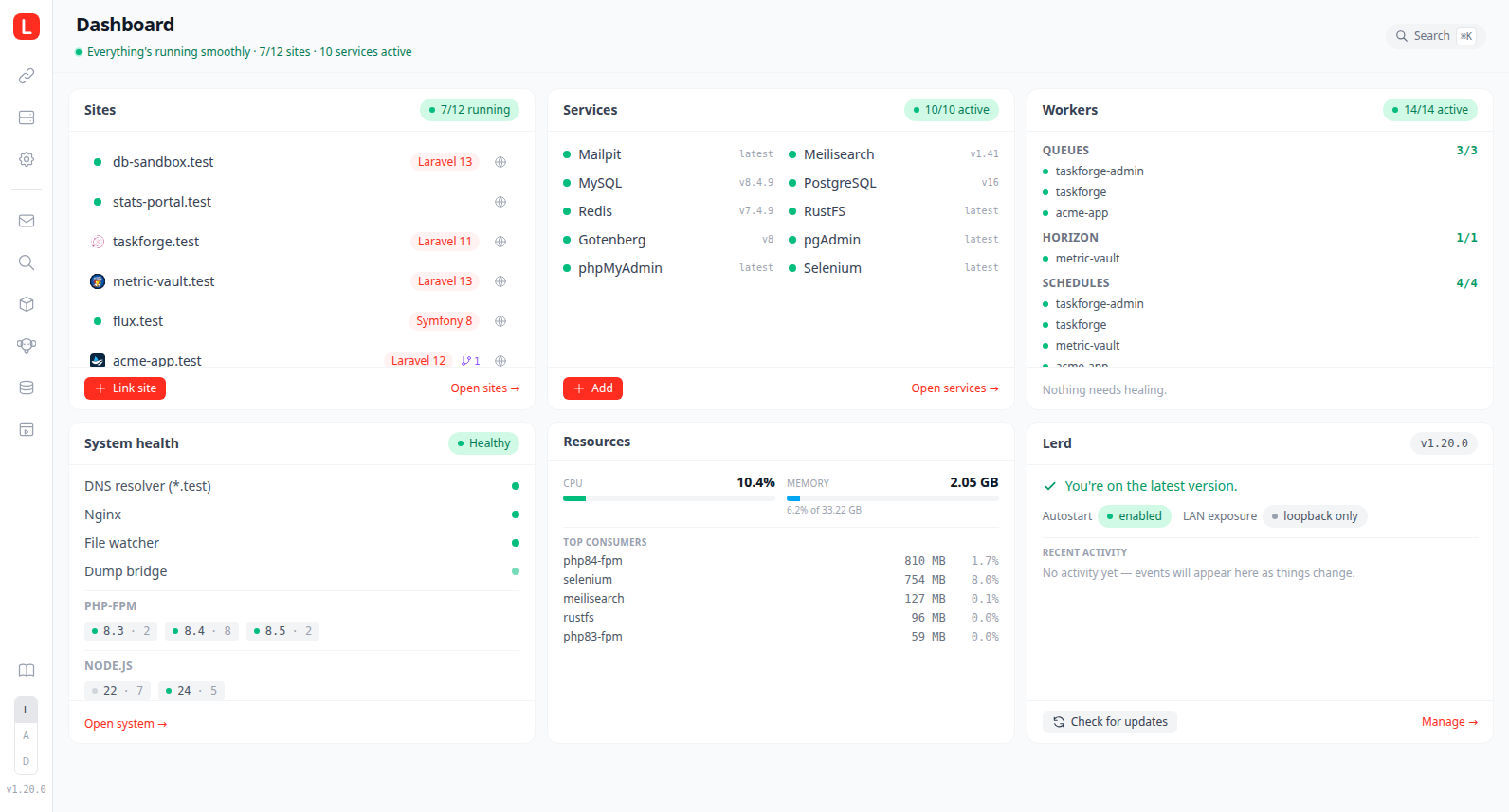
The Dashboard is the root page (#dashboard) and the default destination when the UI loads. It hides the middle list panel and fills the main pane with a responsive grid of widgets:
Sites: a running-vs-total summary pill that turns red while any worker is failing, and one card per site, the same card the Sites tab draws, with the site icon or favicon, the app name as the title, the domain, framework and PHP version on the subline, the TLS padlock, the share, worktree, idle and worker indicators, and an open-in-browser button. Paused sites are left to the Sites tab and the rest are newest linked first. A Link site call to action opens the same wizard as the Sites tab
+button.Services: an active-vs-total summary pill, a second pill counting the services with updates available, and one card per core service, the same card the Services tab draws, with the service icon, its running state in words, the version, an update arrow and a shortcut to its admin dashboard. Services with an update sort to the top so their arrow stays in view. An Add button opens the preset picker, and a link leads into the Services tab.
Workers: one collapsible group per worker type (Queues, Schedules, Horizon, Reverb, Stripe, custom Workers), each headed by that worker's mark, its name and a summary counting only the states present, "3 up · 1 idle". Opening a group reveals one line per unit: state dot, the site it runs for (or
site/branchfor a worktree unit), and for a failing unit the last line it printed. An idle-suspended worker keeps its line with a moon and an "idle" tag rather than vanishing. Groups start closed, except one holding a failing worker, which opens itself so the error is readable without a click; whatever you open or close is remembered, and a group you closed stays closed. Each line links through to its site, and a Heal all button runs the same heal flow as the worker-health banner. Otherwise shows an "All healthy" pill.The worker type and its framework live on the heading rather than on every line, since a group is normally one of each. When a group does span two frameworks, the heading drops its brand tone and each line takes its own small framework mark, so the thing that actually differs between the rows is the only thing drawn on them.
The marks come from the framework store, not from lerd: a worker declares
icon(a built-in glyph, or a mark the store ships underworkers/<icon>.svg) and optionallycolor. A worker that declares no colour is inked in its framework's, so a Laravel queue and a Symfony messenger read as different products at a glance; one that declares no icon at all falls back to its framework's own mark, and then to a plain gear. See Framework Workers.Status banner: the strip above the grid. When DNS, Nginx or the watcher is down it turns red, names what is down, and carries a Start Lerd button that runs the same start as the CLI, so a stopped environment comes back without opening a terminal; an Open system link sits next to it for the component detail. The start streams its progress back, so the button counts units as they come up ("Starting... 7/20") and the line under the heading names the stage it is in, the same sequence the CLI spinner shows: preparing, checking images, then each unit by name, then DNS. A start driven from the dashboard leaves
lerd-uialone; restarting it would take down the process serving the page. The banner also covers failing workers (with Heal all), and otherwise reads as a quiet green line. An available update is left to the Lerd card, which scrolls away like any other card rather than standing over the grid until you update.System health: overall pill (Healthy / Attention / Problem) derived from DNS, Nginx, and the file watcher, plus a row per component and a chip per installed PHP-FPM version coloured by its running state.
Lerd: current version, "Up to date" or a yellow "update available" banner with an Open terminal & update button and a View what's new link that opens the release notes in a modal, Autostart and LAN status pills, plus Check for updates and Manage → in the footer.
Resources: total CPU%, total memory, and reclaimable disk across lerd's whole footprint, the
lerd-*containers plus lerd's own host-side processes (the UI, watcher, and tray daemons and any host worker such as a Vite dev server), with the memory bar also showing its share of host RAM, and a ranked list of the heaviest contributors by combined CPU and memory. Memory is what each row actually holds, read from its cgroup with the page cache taken out, so a service that has read a lot of files is not reported holding memory the kernel can reclaim the moment anything else wants it. A container row covers everything its service runs, the container plus the rootless helpers podman starts alongside it, which is why a small container can still show tens of megabytes against its name. CPU is a share of the whole machine rather than of one core, so the rows add up to the headline, and it is averaged over the interval since the previous refresh rather than sampled for an instant, so a row reads as the cost that service is really carrying. Two disk figures sit alongside: what lerd's own images occupy with a shared layer counted once, which opens a breakdown of every image in that total marked in use or idle, each row carrying the full cost of its own layers so rows overlap where they share a base, and whatlerd cleanupwould reclaim, shown only when there is something to reclaim and split into lerd's own leftovers and other images on the machine. A Clean up button runs it from a modal that previews what goes, grouped the same way and named by image ref, so you can see the space before deciding to take it.
Every widget is driven by the same Svelte stores that power the rest of the dashboard, so all values stay live over the WebSocket without polling.
Command palette
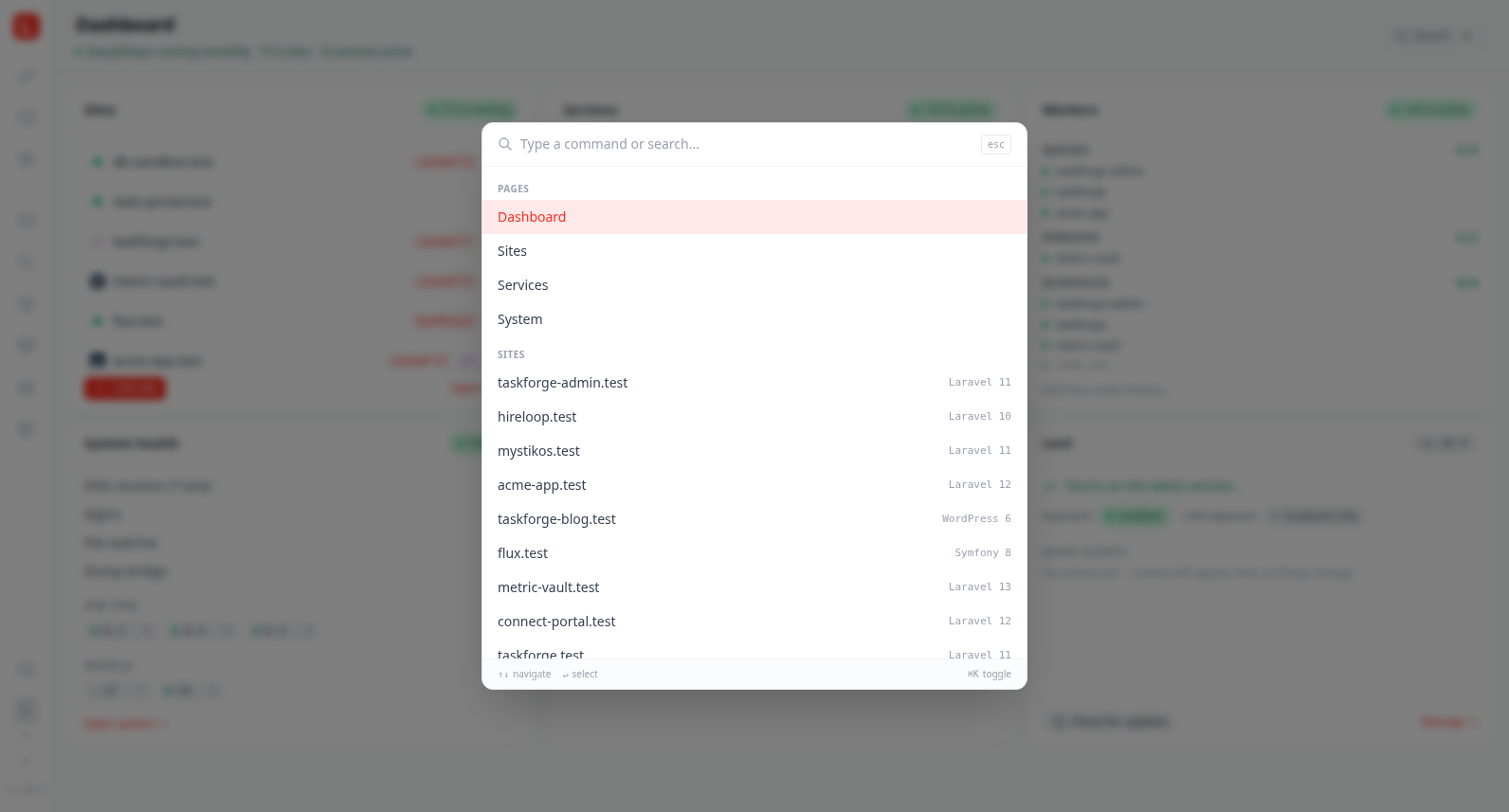
Press Cmd+K (macOS) / Ctrl+K (Linux/Windows), or / anywhere outside an input, to open a global command palette overlay. It searches across:
- Pages: Dashboard, Sites, Services, System
- Sites: every linked domain, with framework hint, led by the framework's own mark
- Services: every core service, with version hint, led by the mark its preset ships in the same way
- Install service: every installable bundled preset, so searching "install redis" installs it inline without opening the picker modal
- Actions: Add a site, Add a service, Heal failing workers (when any), Check for updates, Open documentation, Open current site in browser, Toggle theme
Use ↑ / ↓ to move the selection, ↵ to execute, esc to close. The palette is available on every tab, not just the dashboard.
Sites
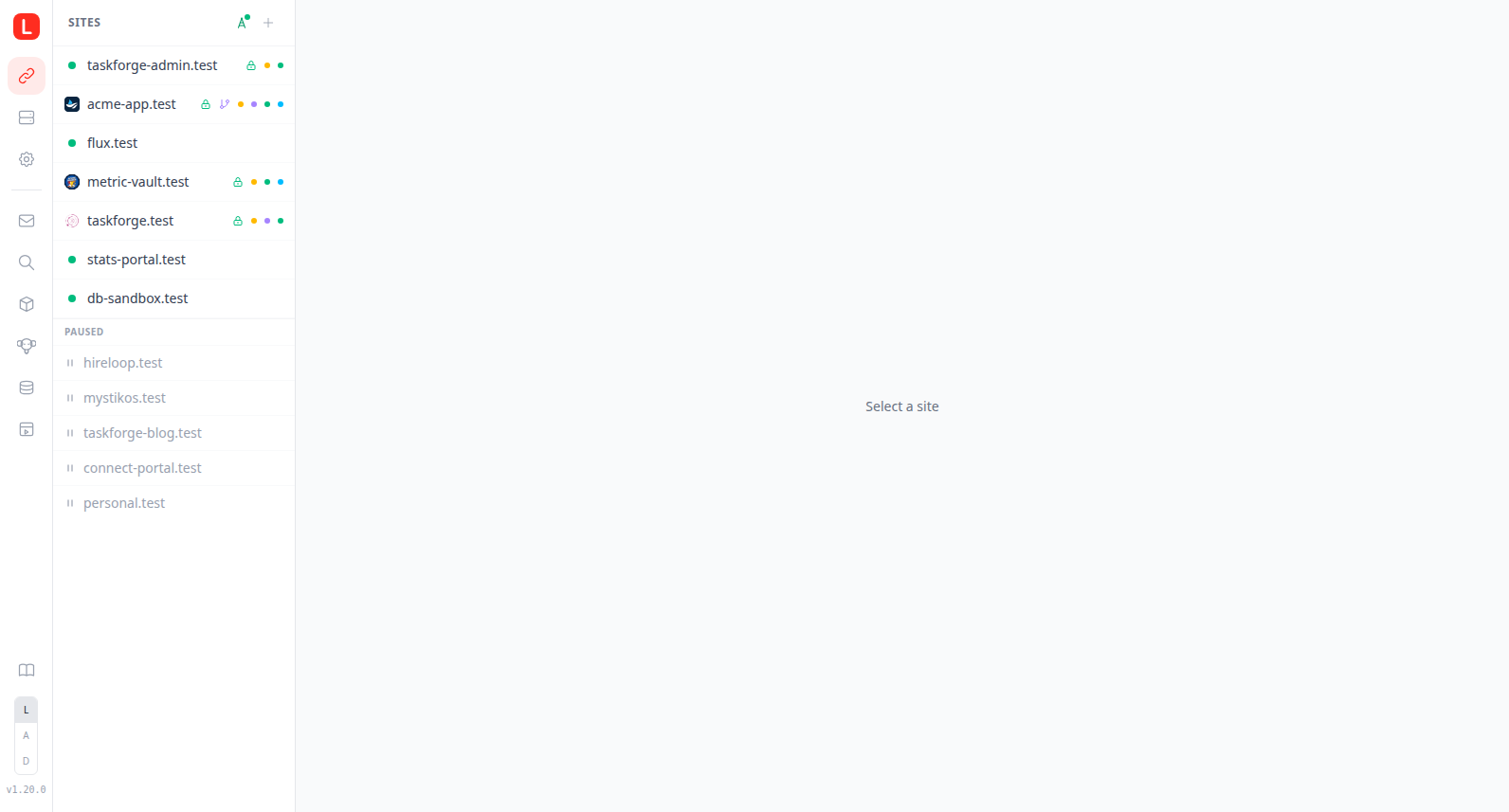
The middle panel lists all registered projects. Each row leads with the site's own favicon, falling back to the mark of the framework it runs when the site serves none, and to a status dot (green when FPM is running) only when neither is available. Then comes the domain name, and small indicator dots for running workers (amber for queue/horizon, sky for reverb, emerald for schedule, violet for custom workers). Paused sites appear in a separate collapsible section.
A sort button floats in the bottom-right corner of the list; clicking it opens a small menu with Recently used (the site that served a request most recently floats to the top), Most used (the site that served the most requests over the last seven days), Alphabetical (by domain), and Newest first (reverses the order sites were linked in). The two traffic modes read the same request store the request timing view is built from, so they count only the requests your app actually served: static assets, WebSocket upgrades, anything a dev server answered, and anything nginx timed at zero are left out, and a site's worktrees count toward it. A site with no traffic in the window sorts below every site that has some, alphabetically among the others. With workspaces configured, sorting orders the rows inside each workspace; it never moves a site out of its section. The choice is remembered across reloads. A drag handle appears on a site row when you hover it; grab it to drag the row into a new position, with the dragged row and the rest of the list animating smoothly into place. Dragging switches the list into a manual order seeded from whatever you were looking at, so there's no separate "manual" mode to pick. The new order is saved to sites.yaml and pushed live to any other open tab. Grouped subdomains always travel with their main site, and the paused section stays at the bottom.
Before you pick a site the detail panel shows a sites overview instead of an empty prompt. The header carries an Overview line with the running-vs-total count, a paused tally, and a failing-workers indicator. Below it your sites are laid out as click-through tiles grouped by framework (Laravel, WordPress, and so on, with anything unrecognised folded into a trailing Other group), and a final Paused group for any suspended sites. Each tile is titled by the Laravel APP_NAME when the site sets a custom one (falling back to the domain, which then moves into the subline), and shows the site favicon, the mark of its framework when it has no favicon, or a status dot when neither is available, a framework and PHP/Node subline, a TLS lock, a worktree marker, the same running-worker dots as the list, and an open-in-browser shortcut. An Add a site action sits at the bottom in loopback mode.
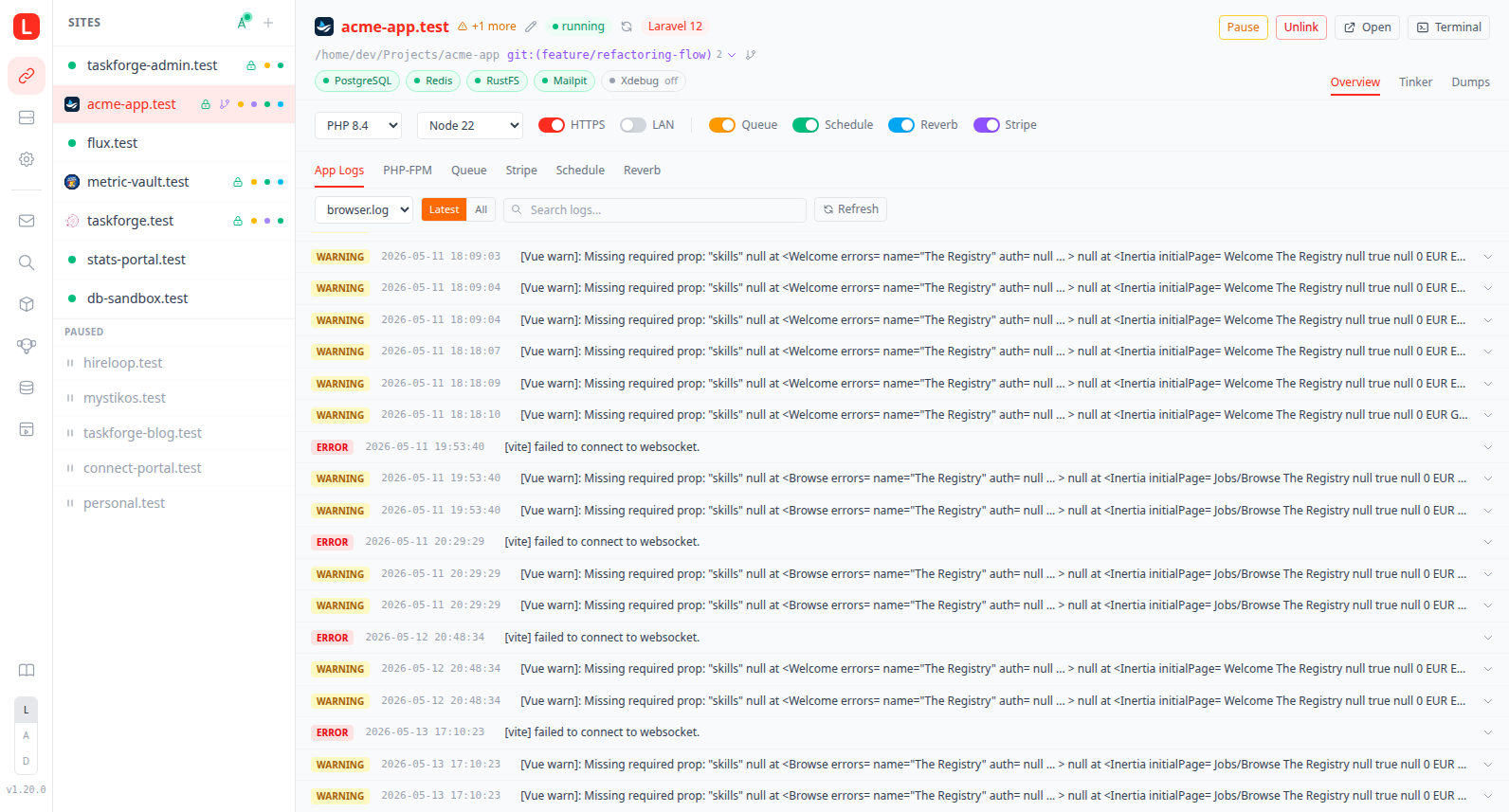
Selecting a site opens the detail panel with:
Address bar header: a browser-style row with the site's favicon, scheme, and domain. The leading lock icon toggles TLS in one click (green closed when enabled, gray open when disabled, static on worktrees and when DNS is off). Clicking the domain opens the Manage Domains modal, and the sliders button at the end of the bar edits the site's nginx override. Past the domain sits the framework badge, wearing the brand colour its framework declares, with the framework's own mark inside it; a framework that declares no colour keeps the default tone. To the right sits an action toolbar, every button the same size: open in browser, group, a share button, xdebug, terminal, and a ⋮ menu holding restart, pin, pause/resume, and unlink. On narrow panels the secondary actions fold into the ⋮ menu. The project path shows at the right of the tab row (Overview, Logs, Env and so on), centred against the tabs. Host actions such as terminal run on the machine that runs Lerd. The terminal action opens
$TERMINALwhen it is set, then the terminal you chose as your system default: on macOS the one LaunchServices records, so Warp, iTerm2, Ghostty and the rest are honoured without any setting of their own, and on Linuxxdg-terminal-exec, the distribution'sx-terminal-emulatoralternative, or the terminal named in KDE's or GNOME's settings, whichever the system carries. A chosen terminal lerd already knows is launched with its own flags rather than a generic wrapper, since kitty and ghostty take the program directly. When nothing was ever picked it falls back to the list of common emulators, and on macOS to Warp, iTerm2 and Terminal.app in that order.Share menu: clicking the wifi button toggles LAN sharing exactly as before, while hovering (or keyboard-focusing) it opens a menu with both share modes. The Local network section mirrors the LAN toggle with the share URL inline. The Public tunnel section starts a
lerd sharetunnel without leaving the dashboard: an auto entry picks the same tool a barelerd sharewould, each supported tool (ngrok, Cloudflare Tunnel, Expose, Serveo, localhost.run) is listed beneath it, and tools missing from the machine show up disabled with an install hint. Starting a tunnel waits for the tool to print its public URL, which then appears as a violet chip next to the domain with the same hover-QR as the LAN link, and the menu offers a Stop action. Tunnels started from the UI are owned bylerd-ui: they end when stopped or when the daemon shuts down, and unlike LAN shares they are never resurrected on restart. Tunnels front the site's primary domain, so the section hides while a worktree tab is active, and on narrow panels the tunnel start/stop actions live in the ⋮ menu. The cog next to ngrok holds its settings: the auth token that lets a machine without ngrok installed share anyway, and the extra flags every ngrok share passes to ngrok for the features lerd has no setting of its own for (see Sharing Sites).Overview layout: the Overview tab is a stack of sections rather than one long strip, a Runtime & workers row with the PHP/Node pickers, worker toggles, a Doctor button, and the Commands ▾ dropdown, and a Services grid of icon cards. Live logs moved out to their own Logs tab.
PHP / Node dropdowns: change the version per site; writes
.php-version/.node-versioninto the project and regenerates the nginx vhost on the flyQueue toggle: start or stop the queue worker; amber when running; live log stream below
Schedule toggle: start or stop the task scheduler; live log stream below
Reverb toggle: start or stop the Reverb WebSocket server; only shown when the project uses Reverb (detected via composer or
.env)Framework worker toggles: additional workers defined by the site's framework (e.g. Symfony
messenger, Laravelhorizon) appear as indigo togglesStripe toggle: start or stop the Stripe webhook listener
Worker logs shortcut: every worker toggle carries a small log-lines button on its right that opens the Logs tab with that worker's journal already selected, the same segment the queue's options gear sits in. The selected source lives in the address (
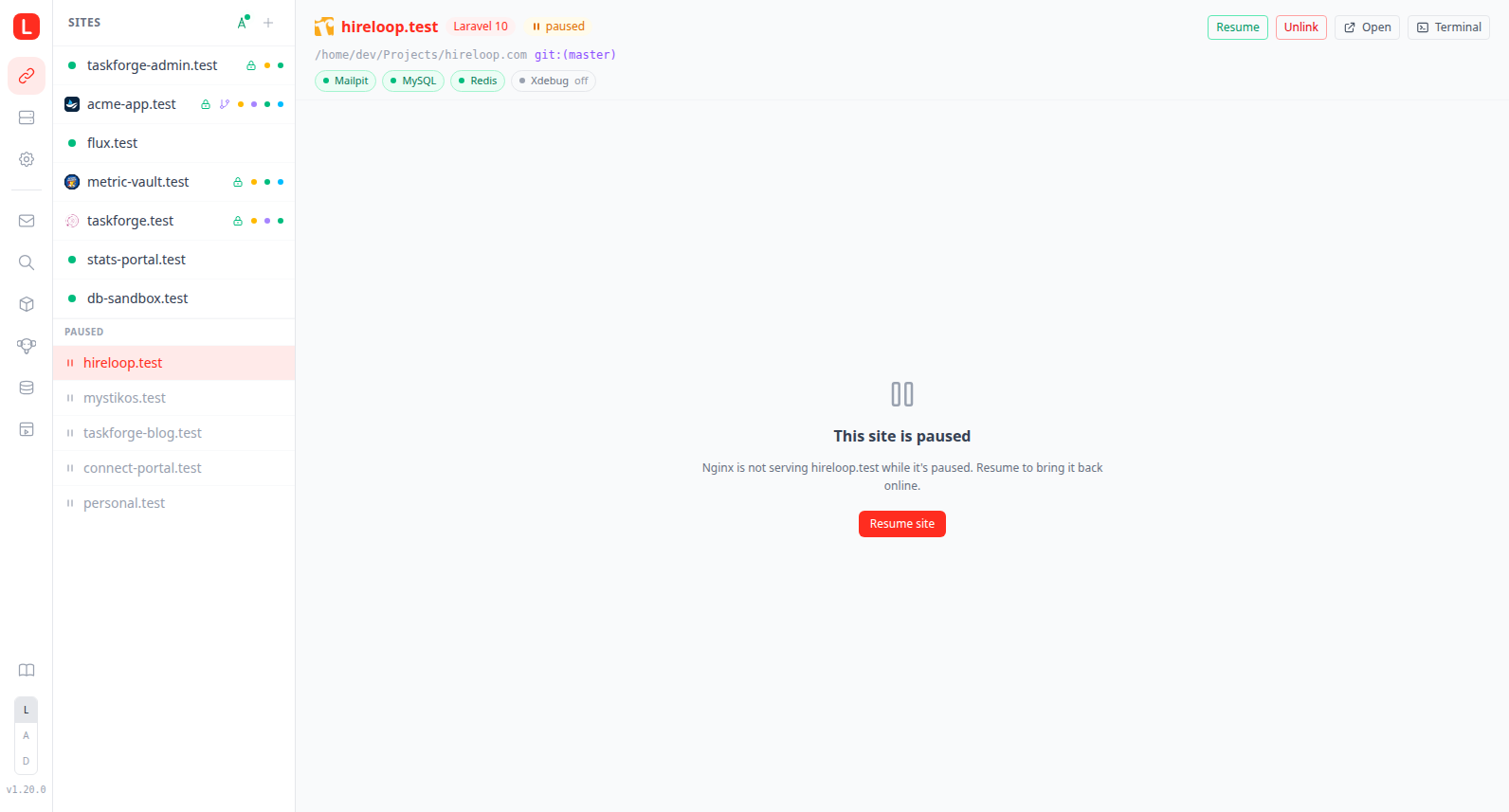
#sites/<domain>/logs/<worker>), so a worker's logs can be linked and bookmarked directlyPause / Resume: suspend a site's nginx vhost without unlinking it; the site stays registered and FPM keeps running. When a paused site is selected, the detail pane hides the overview/logs/tinker/dumps tabs and shows a centered Resume placeholder so it's obvious the site is offline on purpose rather than broken
Add a site: a CTA on the dashboard Sites widget and a + button next to the Sites list header open the site wizard. It starts by asking whether you are linking a project that already exists or creating a new one. Linking browses your directories the way it always has; creating asks for a parent directory, a name, and which framework and major to scaffold, from the catalogue the store publishes. Both paths then meet at the questions
lerd initasks on the terminal, PHP version, HTTPS, the database, services and workers, saved to the project's.lerd.yaml, and end on the setup step list, where the steps run one at a time with their output streaming into the modal. The wizard finishes on the new site.Scaffolding is minutes of composer, so the work runs in lerd-ui rather than in the request: closing the modal or reloading the page leaves it going and reopening the wizard picks it back up where it was. Because it creates directories and runs commands on the host, a remote dashboard reaches it only after
lerd remote-control full-access on.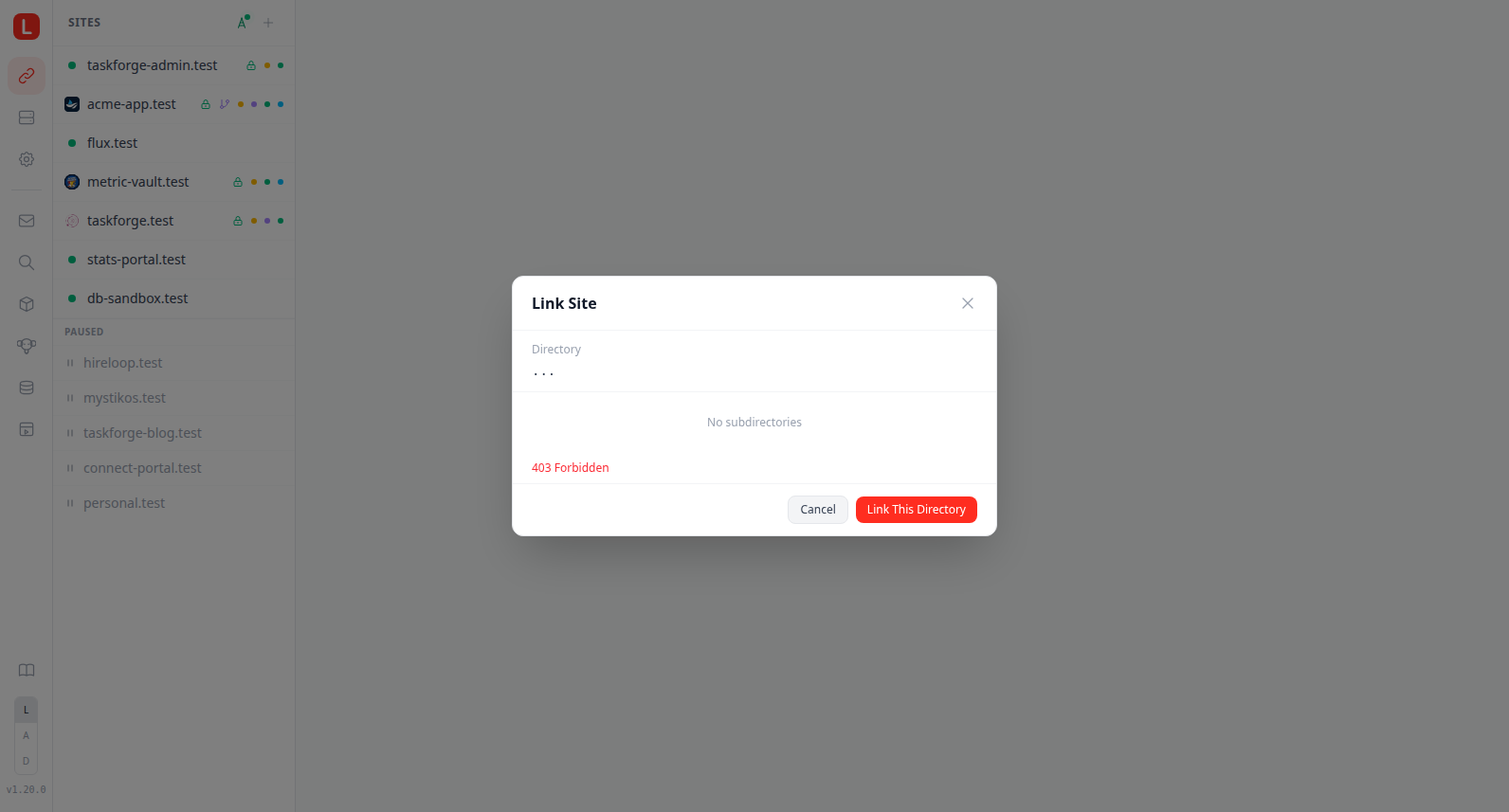
Unlink button: remove a site from nginx without touching the terminal. It opens a confirmation modal naming the site, and on confirm the site is unlinked while its files stay on disk; a refused unlink reports the reason inside the modal
Git Worktrees: on a git-backed site the address bar grows a tab strip above it. The first tab is the main checkout, followed by one tab per worktree (branch name); every tab carries a git-branch icon, and selecting one switches the path on the tab row to that worktree's checkout. Each worktree tab has an inline × that opens the Remove Worktree modal scoped to that branch (force / drop-db checkboxes). A trailing + opens the Add Worktree modal. Each worktree's framework-worker toggles still appear in the Overview's Runtime & workers row, so a per-worktree Vite dev server, queue, or schedule worker can be flipped on without affecting the parent. Worktree workers run under
lerd-<wname>-<site>-<wt>units; the Workers group on the Services tab groups them under the same label as the parent site (e.g. "Vite") with abranchchip per rowAdd Worktree modal: asks for a new branch or existing branch, the database choice (share parent / isolated empty / clone main / clone another worktree / reuse a preserved isolated DB), an optional Run migrations checkbox, and the frontend-asset build choice (Automatic / asset worker / npm script / skip). Submission streams the underlying
lerd worktree addoutput live in the modal, including theAutomatic: ...resolution line so the picked build path is never silent. The modal closes on success, or stays open with a warnings banner if any[WARN]lines were emittedRemove Worktree modal: opens scoped to a single branch when its tab's × is clicked. Offers a Discard uncommitted changes (force) checkbox and, when isolated, an Also drop database checkbox. Runs
lerd worktree removeand closes once the branch is goneLive PHP-FPM log: streams FPM output for the selected site; tab switches to queue/horizon/schedule/reverb logs when those workers are running
Coloured output: every live log pane renders the ANSI colours the tool emitted, so Vite, Pest, artisan and composer read the same as they do in a terminal. Workers and UI-run commands are started with
FORCE_COLOR,CLICOLOR_FORCEand a colour-capableTERMbecause they write to a pipe or a log file rather than a terminal and would otherwise strip their own colours; settingNO_COLORin the environment lerd starts from turns all of that back offSeverity colours: log lines that carry no colour of their own are tinted by what they say, the same way in every pane: errors, fatals and 5xx responses red, warnings, PHP notices and 4xx responses amber, php-fpm and nginx notices blue, and successful access lines green. PHP's own diagnostics outrank the level word next to them, so a
PHP Warningfrom the site reads as an error rather than as fpm housekeepingFollow in terminal: the terminal icon in a log pane's header opens the host's terminal emulator tailing the same unit (
podman logs -f,tail -f, orjournalctl -fdepending on the platform and the unit), so a long tail can outlive the browser tab. It picks the emulator the same way the site's terminal action does:$TERMINALfirst, then the terminal the desktop is set to use, then the list of common ones. Remote dashboards show the same action oncelerd remote-control full-access onis set; the terminal opens on the host that runs Lerd.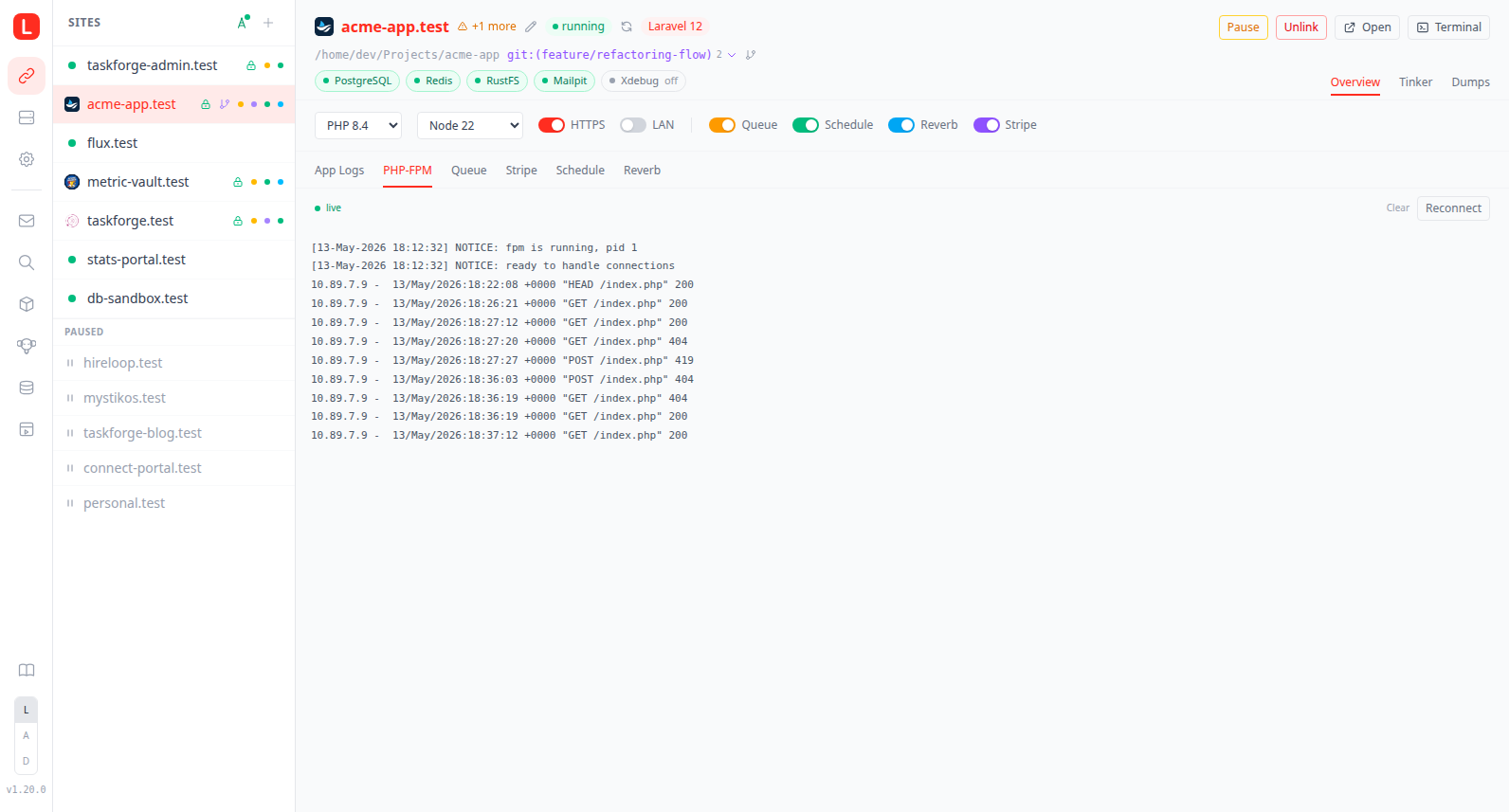
App logs tab: parses every
*.logfile the framework declares (Laravel:storage/logs/*.log) into level-coloured entries with click-to-expand stack traces and a live-search box. The dropdown switches between log files; the Latest / All toggle controls how many entries to fetch. A Clear logs button (showing the total log size) reclaims disk by deleting those files; clicking it opens a confirmation modal, and on confirm the active log is recreated by the app on its next write.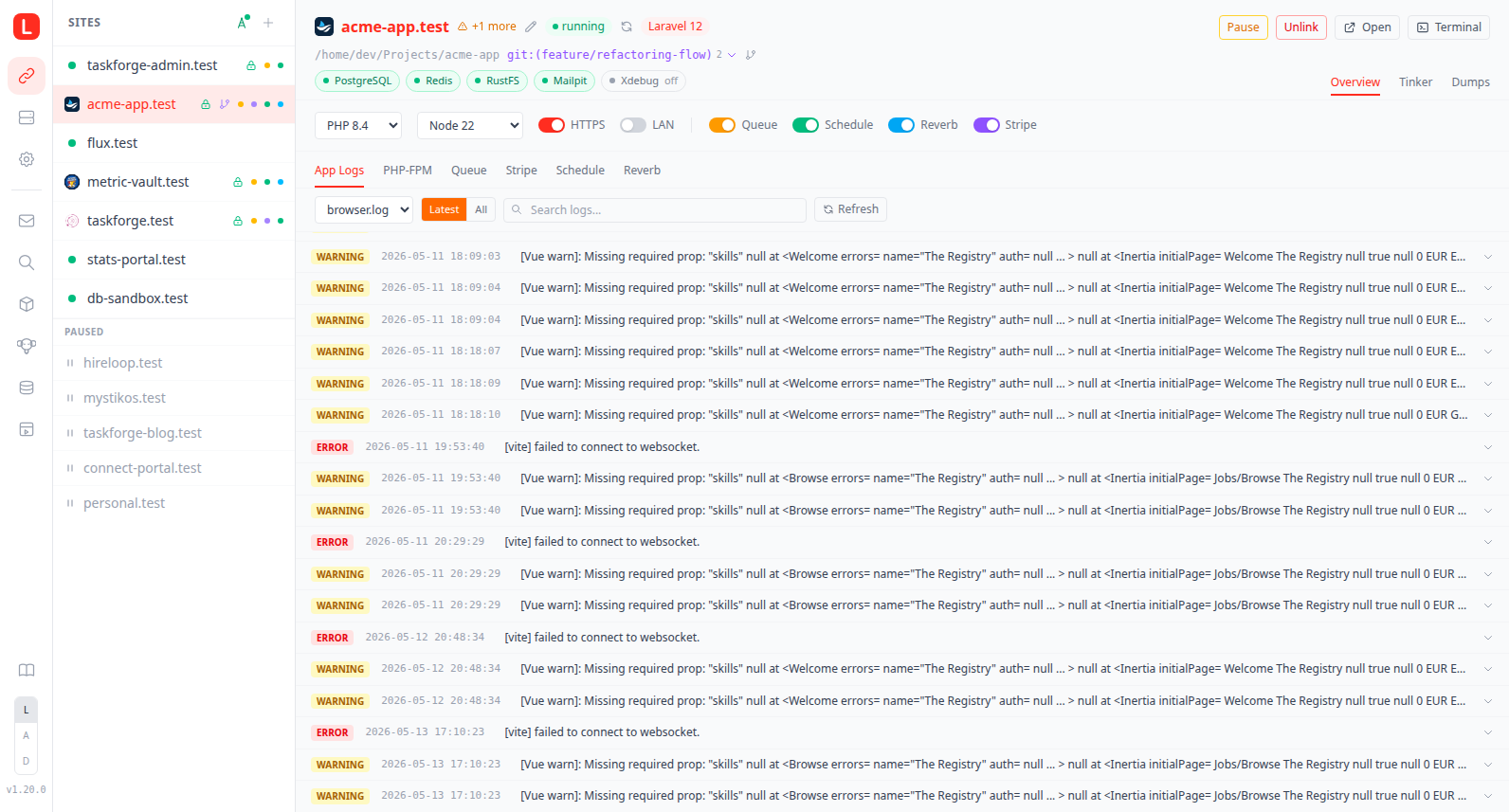
Env tab: edit the project's
.env(and any.env.*variant) right in the browser. Saving goes through a confirmation modal with an optional back-up-first checkbox and an atomic write that preserves the file mode; when a backup exists a Restore button opens a diff before rolling back. See Environment Setup.Doctor: a stethoscope button in the Overview's Runtime & workers row, next to Commands, opens a modal that runs a battery of app-level health checks for any framework. Every site gets a universal baseline: the env file is present, keys declared in the example env file but absent from the real one (the check scans the project's PHP for how each key is read, so it warns only on keys the app reads without a default, plus
VITE_keys the frontend build needs, and stays quiet about keys that have a code fallback), the application key is set when the framework declares one, composer and node dependencies are installed with their lockfiles in step,composer auditandnpm auditreport no known advisories, and the resolved PHP version sits inside the framework's supported range. On top of that each framework contributes its own checks from its store definition: Laravel adds theAPP_DEBUG-in-production footgun, thepublic/storagesymlink, and pending database migrations (which readsmigrate:statusin the container and degrades to "unknown" when the app or its database is down). The checks run on demand when the modal is opened rather than on every site view, and render as a compact list with a pass/warning/error icon on the right of each row. Findings that have a one-click fix show a Fix button that runs the matching command and streams its output in the command-run modal, then re-checks. Framework findings run a named framework command (e.g.key:generate,storage:link,migrate); the universal dependency and audit findings run an allowlisted package-manager command instead (composer install,composer update,npm install,npm audit fix). The environment-variables finding offers an Edit shortcut that jumps straight to the Env tab. With a worktree tab selected the checks run against that worktree's checkout and its own env file (materialised first if the branch hasn't been opened yet), so a worktree is never diagnosed against the main branch's files or database. The button only appears when the site actually has something to check: a host-proxy Python, Ruby, or Go dev server with no framework and nocomposer.jsonorpackage.jsonhas no applicable check, so it hides the button rather than offering an empty report.Edit nginx: the sliders button at the end of the address bar opens the site's nginx override in a modal code editor with Save / Reset / Restore and timestamped backups, and every save runs
nginx -tbefore committing. With a worktree tab selected it edits that worktree's override instead of the main branch's. See Nginx Overrides.Services: the Overview's Services section lists every service from the project's
.lerd.yamlas an icon card (a category-tinted service icon, its name, and a running/stopped status). Click a card to jump to that service's detail panel on the Services tab. A running service that ships a dashboard (mailpit, an admin UI, and so on) also carries an open-dashboard button on its card that opens the dashboard overlay directly. A service with no dashboard of its own falls back to its paired admin UI when that one is installed, so a mysql or mariadb card opens phpMyAdmin and a postgres card opens pgAdmin, starting the admin service first if it is stopped. A service the project references but that was never installed shows an amber Not installed status instead of a misleading Stopped; clicking its card opens a modal that offers to install the bundled preset for that name inline (with a version dropdown for multi-version presets) and jumps to the new service when it comes up. When no bundled preset matches the name the modal explains that it is a custom service to define under~/.config/lerd/services/. The section is hidden entirely when the project declares no services.
Services
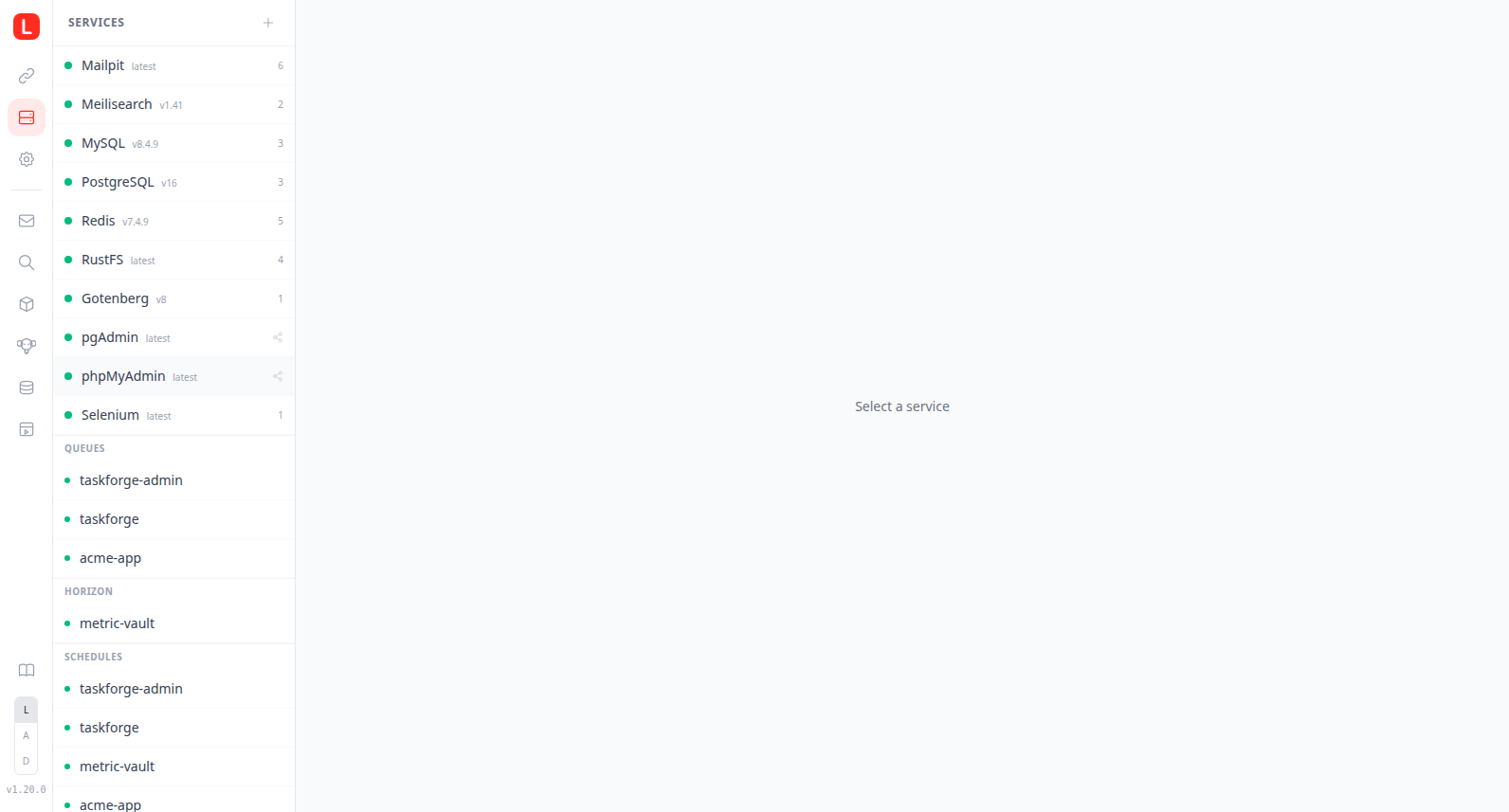
The middle panel lists core infrastructure services (MySQL, Redis, PostgreSQL, Meilisearch, RustFS, Mailpit), any installed preset alternates (e.g. MySQL 5.7, MariaDB 11, MongoDB) and admin UIs (phpMyAdmin, pgAdmin, Mongo Express), grouped by service type under labelled sections (Databases, Cache, Messaging, Search, Mail & PDF, Admin UIs, Storage, Testing) in the same order the discovery grid uses, plus grouped per-site workers (Queues, Horizon, Schedules, Workers, Stripe, Reverb) below them.
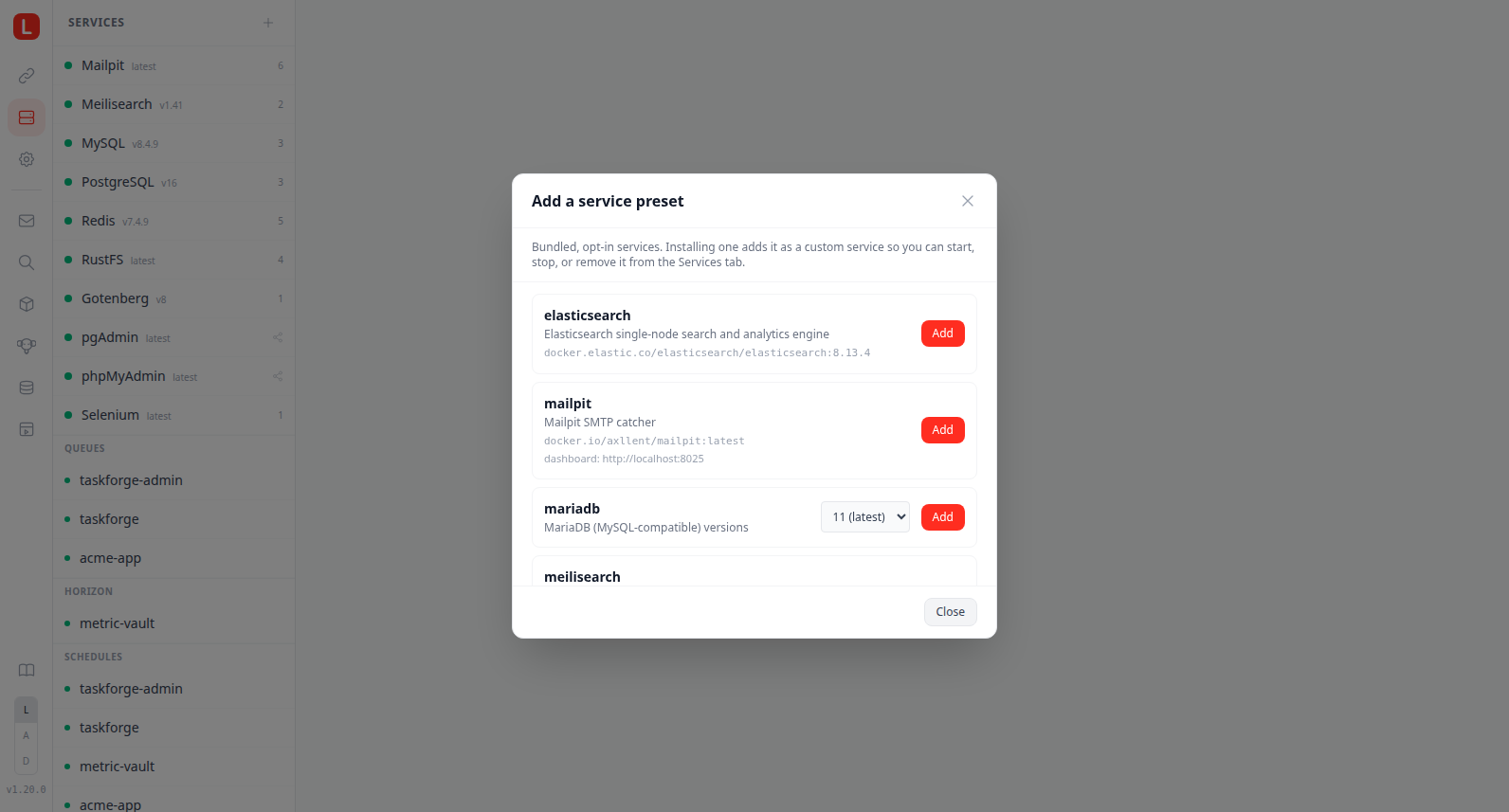
The header has a + button that opens the preset picker modal: a one-click installer for the bundled service presets. Every row leads with the mark its preset ships, in the brand colour the preset declares, falling back to the category-tinted glyph the preset names when the store carries no mark for it. A search box at the top filters the list by name, description, or image as you type. Multi-version presets like mysql and mariadb show a version dropdown next to the Add button. Already-installed entries are filtered out.
Before you pick a service the detail panel shows a services dashboard instead of an empty prompt. The header carries an Overview line with the running-vs-total count, an updates-available indicator, and the number of sites currently served. Below it an Installed grid lists every core service as a click-through card carrying the same category-tinted service icon the presets below it use, with its running/stopped status, version, pending-update arrow, and linked-site count. A running card that ships a dashboard also carries an open-dashboard button, and one with no dashboard of its own falls back to its paired admin UI when that is installed, so the mysql card opens phpMyAdmin and the postgres card opens pgAdmin, starting the admin service first if it is stopped. A Discover services section then promotes the bundled presets you have not installed yet, grouped by category (Databases, Cache, Messaging, Search, Mail & PDF, Admin UIs, Storage, Testing). Each preset is a card showing its service icon, name, and a one-line description, with an Add button that installs it inline with live phase feedback and jumps straight to the new service when it comes up. A preset only shows here while you run none of it, so an existing mysql or mariadb install is never promoted again just to offer its other versions; adding an alternate version stays in the preset-picker modal, which the section's + shortcut still opens.
Selecting a service opens the detail panel with Start, Stop, and Restart controls, status, and the correct .env connection values with a one-click copy button. The header leads with the same service mark the installed grid draws, larger and standing on its own without the tinted plate, inked in the brand colour the preset declares. An admin UI that ships no mark of its own draws the mark of the engine it administers instead, in that engine's colour, so pgAdmin comes up as PostgreSQL's elephant rather than a stand-in glyph; a per-site worker carries no mark of its own, so its header starts at the label. The header states how many sites use the service on a button next to the action menu, which drops down the list of them: each row is coloured by what that site is doing (serving, paused, stopped) and links through to it, and a service nothing uses shows no button at all. A per-site worker answers to one site, so its header names that site inline instead. Restart is available for every built-in and custom service and wraps podman restart (clears the paused flag on success); the grouped per-site workers (Queues, Horizon, Schedules, Workers, Stripe, Reverb) remain start/stop only. A Check for updates action sits in the service's action menu (non-worker services only); it bypasses the cached availability lookup, re-fetches the registry tag list, and shows either an "Already up to date" hint or a "Update available: {tag}" banner that becomes the live Update button moments later. Database service detail panels (mysql, postgres, mongo, and any installed alternate like mysql-5-7) get a few extras:
- Databases tab: the panel opens on it, listing what is actually inside the running engine as cards with their sizes. From a card you can create and drop a database, export it to a plain SQL dump or import one, copy a per-database connection string, and open it in an installed admin tool, with that database's snapshots to take, restore, delete or download on the same card. Cards link back to the site that owns the database, a
_testingdatabase folds into the card of the database it tests and is offered up alongside it when that database is dropped, and a worktree's isolated database is shown under its own branch domain. It requires dashboard-control authority, which remote sessions receive only afterlerd remote-control full-access on. See Databases. - Snapshots tab: next to Databases, the automatic snapshot schedule stated at a glance (with a button to the settings dialog) and what the engine's snapshots cost on disk, then every snapshot on the engine as a paged table filterable by site and by when it was taken, each row offering keep, download, restore and delete, with checkboxes for removing several at once behind one confirmation. Whether a given database is covered is set on that database's own snapshots dialog, or with one click on the clock beside it in the Databases grid. Same authority as the Databases tab.
- Env tab: the service's connection URL and every env var its preset wires into a site's
.env, one row per key. The header's copy button takes the whole block asKEY=valuelines ready to paste into a.env, each row copies its own line, and a copy the browser refuses marks the button red instead of failing silently. - Suggestion banner: a sky-blue tip offering to install the paired admin UI (phpMyAdmin / pgAdmin / Mongo Express) when it isn't installed yet. Dismissable per-preset; dismissal persists in
localStorage. - Open admin button: when the paired admin UI is installed, a button on the header opens its dashboard inline as a full-width iframe overlay and auto-starts the admin service if needed. When no admin UI is installed and the service is active, a fallback Open connection URL anchor hands the
mysql:///postgresql:///mongodb://URL to your registered DB client (DBeaver, TablePlus, Compass, etc.). - Dashboard button: for any service that exposes a dashboard URL (Mailpit, RustFS, Meilisearch, phpMyAdmin, etc.), a Dashboard button in the header opens it as an inline full-width iframe. The iframe overlay has its own header, leading with the service's own mark inked in the brand colour its preset declares, then the service URL, an Open in new tab escape hatch, and a close button. Clicking one of the main nav icons (Sites / Services / System) also closes the overlay.
Any action that has to fetch a container image (installing a preset, updating, migrating, rolling back or reinstalling a service, and on the System tab installing or rebuilding a PHP version) asks first, naming the image and roughly how much it will download, read from the registry manifest without pulling anything. Confirm and it runs as before; decline and nothing is fetched. When the image is already in the local store there is no download to disclose, so the action starts immediately with no extra click. See Image downloads.
Services with a tuning mount (mysql, mariadb, redis, postgres, and any custom service that declares a tuning: block) also get a Config tab on their detail panel. It edits the runtime tuning override in a code editor with the same Save / Reset / Revert / Restore-from-backup flow as the nginx and .env editors; saving restarts the service so it re-reads the file. See Tuning a service.
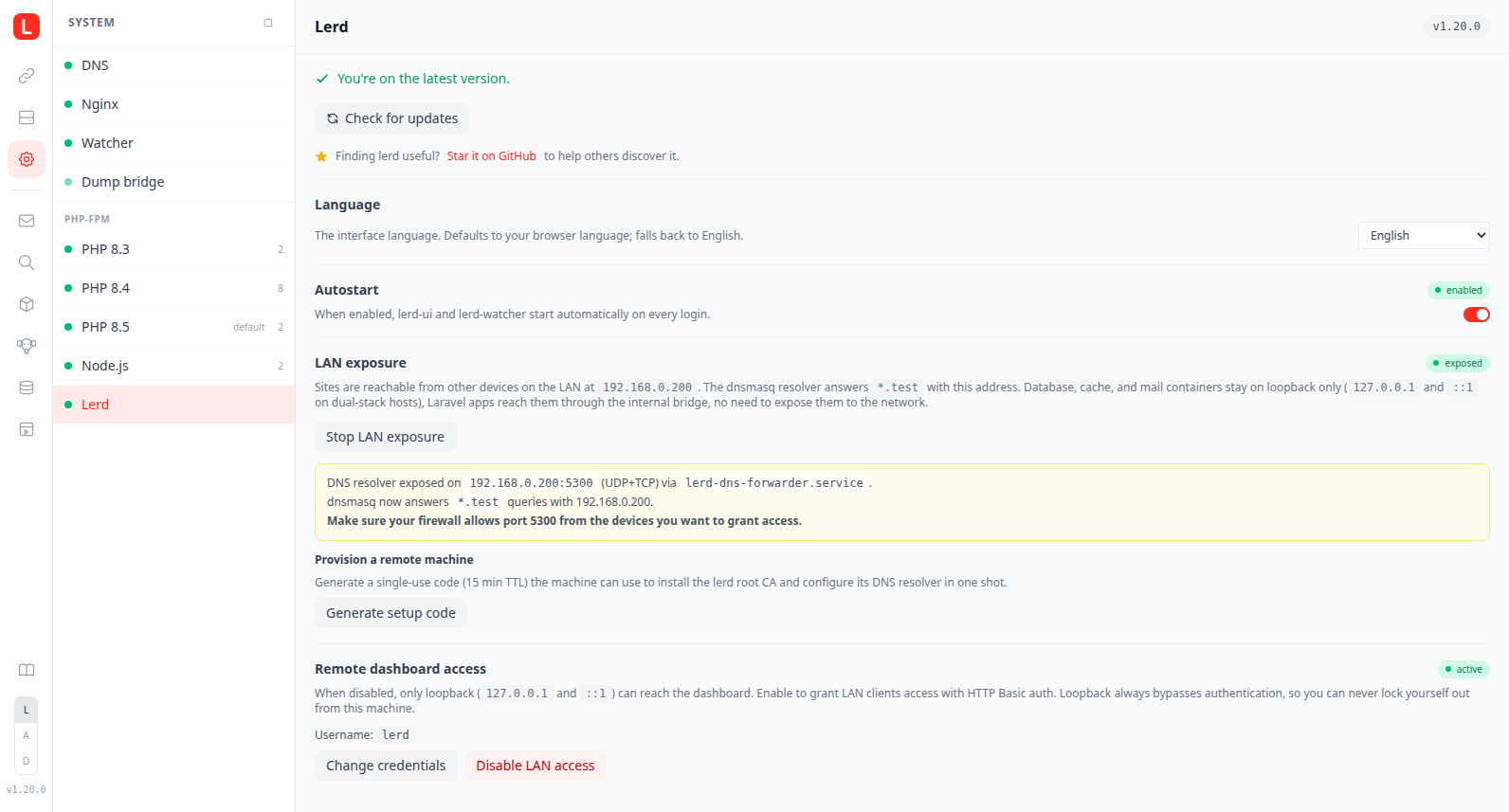
System
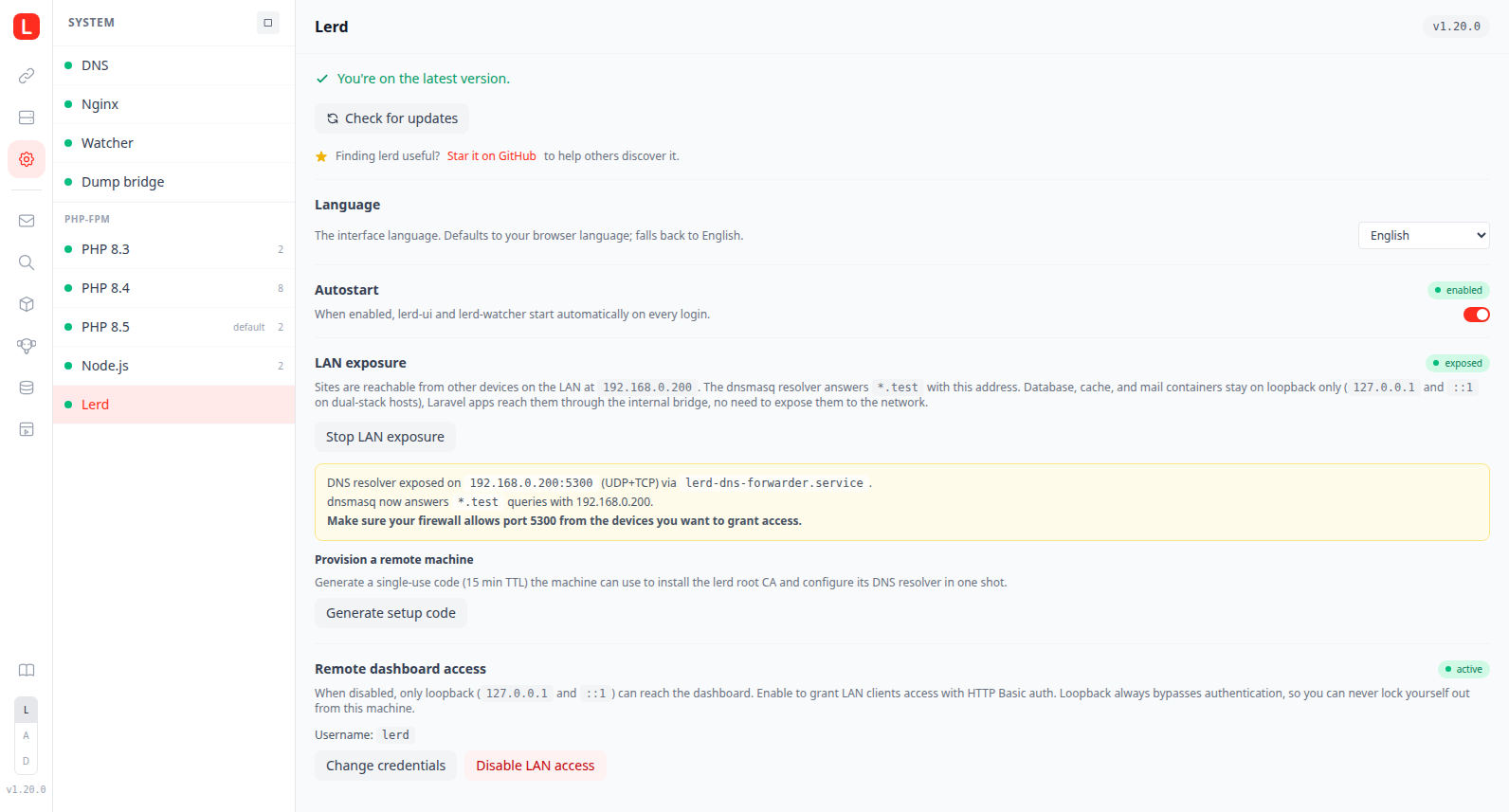
The middle panel lists individual system components: DNS, Nginx, Watcher, Snapshots, each installed PHP-FPM version, each installed Node.js version, the Node install form, Autostart toggle, and the Lerd version entry.
Selecting an item opens its detail panel:
- PHP-FPM cards: a strip of version cards across the top carries the version number, the default star, and the running status; picking one opens its detail below. The version's tab strip (Logs, php.ini, Ports, Extensions) carries the Xdebug toggle with an inline mode selector (debug, coverage, debug-plus-coverage, develop, profile, trace, gcstats, visible when Xdebug is on), the sites button, and the version action menu on its right, so the version, star, and status are stated once on the card rather than repeated below it. The sites button counts the sites on the version and drops down the list, each row coloured by what that site is doing (serving, paused, stopped) and linking through to it; a version nothing uses shows no button. The tabs show the custom extension list and a live FPM log stream. For versions with no active sites, a manual Start/Stop action is available.
- Terminal: the version action group leads with a Terminal button that opens a shell inside that version's FPM container in the terminal emulator you chose, the same session
lerd shellgives from a project. It needs the container to be running, so it is disabled while the version is stopped. - Edit php.ini: each PHP version's detail has a php.ini tab (next to Logs) that edits that version's user
php.inioverride in a code editor, with Save / Reset / Revert and timestamped backups you can Restore. Changes apply to the shared FPM container for that version. An Editing dropdown at the top of the tab switches the scope between this version's file and the version-agnostic shared file applied to every version (a per-version file still overrides it). The same files are reachable from the CLI vialerd php:ini <version>andlerd php:ini shared. - Install a PHP version: a + button sits after the last PHP version tab (browser-tab style). It opens a modal with a dropdown of the supported versions that are not already installed; picking one and clicking Install builds the FPM image and streams the build log live. The build runs server-side, so closing the modal does not cancel it, and an operation finished/failed notification fires when it is done (see Notifications).
- Site Xdebug button: every PHP site detail shows an Xdebug (bug) button in the address-bar row, between the LAN-share and terminal buttons. It turns green when Xdebug is on for that site's PHP version, and clicking it toggles Xdebug on or off in place (restarting the shared FPM container for that version). The button is hidden for static sites, custom containers, and FrankenPHP sites.
- Node.js cards: carry a sites count on the right that drops down the list of sites on that version, each row coloured by what the site is doing and linking through to it, next to a remove button. A version nothing runs on shows no button at all. Sites that pin no version of their own count against the default. The Install Node.js version entry has an inline form; enter a version number (e.g.
22) and click Install, equivalent tolerd node:install <version>. - Nginx card: a Logs tab streaming the
lerd-nginxcontainer log, and a Config tab that edits the global http-level nginx override (gzip, proxy buffers, a globalclient_max_body_size, custommapblocks) with the same Save / Reset / Restore / backup flow as the per-site editor; every save runsnginx -tfirst. See Nginx Overrides. - Snapshots card: the automatic database snapshot schedule and its retention, the same controls the snapshot settings dialog and each engine's Snapshots tab carry. On by default in opt-in mode, so it takes nothing until a database is included, which is set per database on that database's snapshots dialog.
- Watcher card: shows whether
lerd-watcheris running; a Start button appears when stopped. Streams live watcher logs (DNS repair events, fsnotify errors, worktree timeouts). - Notifications card: per-category toggles (mail captured, worker failures, finished service operations, service updates, possible N+1 queries, dumps), a Send a test notification button, and the list of subscribed browsers with Forget actions. See Notifications.
- Autostart card: enable or disable automatic start of all services at login.
- Start when the dashboard opens card: off by default. Turn it on and opening the dashboard on a stopped lerd starts it for you, once per page load, so clicking the app or a bookmark is enough. Independent of Autostart: this one reacts to you opening the dashboard rather than to logging in.
- Lerd card: shows the current version and a Check for updates button. Clicking it spins the button and queries GitHub live, bypassing the 24-hour cache, so the result reflects the newest release right now rather than a stale cached answer. The status dot next to the entry is green when DNS, nginx, and the watcher are all running, red when any of them is down, and yellow when an update is available. When an update is available, an Open terminal & update button spawns the host's preferred terminal emulator with
lerd updatepre-filled. The release notes for the versions in between open in a modal from What's new rather than expanding inside the card. A small yellow dot also appears on the lerd logo in the left rail; clicking the logo always returns to the Dashboard, where the Lerd card carries the same notice.
The Start / Stop buttons in the System panel header start or stop all core services (DNS, nginx, and all PHP-FPM containers for versions that have active sites).
Documentation
The book icon at the bottom of the icon rail opens this documentation inside the dashboard. The pages are the ones embedded in the binary, the same set lerd man reads in the terminal, so they open on a machine with no internet instead of sending you to lerd.sh. Pick a page from the list on the left, or type in the search box above it to search the full text of every page; each result shows the sentence the match sits in.
Links between pages stay inside the dashboard and headings scroll into view, so a cross-reference reads the way it does on the website. The address follows along (#docs/usage/sites), which makes any page a bookmark, and the header keeps a link to the same page on lerd.sh for when you do want the website. Screenshots come out of the binary too, and because the pages are ordinary requests to the daemon, the service worker keeps the ones you have opened for later.
Updates
Shows the current version. When an update is available, the Lerd entry exposes an Open terminal & update button that launches the host's terminal emulator running lerd update. A remote dashboard shows the same action once lerd remote-control full-access on is set; the terminal opens on the host that runs Lerd.